
Documentation Index
Fetch the complete documentation index at: https://retrocultmods.mintlify.app/llms.txt
Use this file to discover all available pages before exploring further.
Supported Controllers
Modern Era
Modern Era
- PDP Riffmaster (both platform variants)
- CRKD
- MULTIPLATFORM, USE P3 MODE, KNOB 1
- XBOX EDITION LES PAUL, USE PC MODE, KNOB 8
- SG, Legacy Mode
Guitar Hero Controllers
Guitar Hero Controllers
- Wired
- RetroCultMods Revival Kit Guitar
- RetroCultMods DIY Kit Guitar
- RedOctane Guitar Hero 2/3 Xplorer for Xbox 360
- Kiosk/Arcade Guitar Hero controller (needs testing)
- **Using **360 Wireless Receiver
- RedOctane Guitar Hero 3/A Les Paul for Xbox 360
- RedOctane Guitar Hero World Tour Sunburst for Xbox 360
- RedOctane “Guitar Hero 5/Band Hero” for Xbox 360
- RedOctane Warriors of Rock guitar for Xbox 360
- Using included PS3 wireless dongle
- RedOctane Guitar Hero 3/A Les Paul for PS3
- RedOctane Guitar Hero World Tour Sunburst for PS3
- RedOctane “Guitar Hero 5/Band Hero” for PS3
- RedOctane Warriors of Rock guitar for PS3
Rock Band Controllers
Rock Band Controllers
- Wired
- RB1 Wired Stratocaster for Xbox 360
- Rock Band 3 Precision Bass Wired for Xbox 360
- Using 360 Wireless Receiver
- RB1, RB2, RB3, RBB wireless Stratocaster for Xbox 360
- RB Beatles Hoffner for fox Xbox 360
- RB Beatles Gretsch for Xbox 360
- Logitech Stratocaster for Xbox 360
- RB3 Telecaster for Xbox 360
- RB3 Precision Bass Wireless for Xbox 360
- Using included PS3 wireless dongle
- RB1, RB2, RB3, RBB Stratocaster for PS3
- RB Beatles Hoffner for PS3
- RB Beatles Gretsch for PS3
- Logitech Stratocaster for PS3 (requires special dongle)
- RB3 Telecaster for PS3
- Rock Band Precision Bass for PS3
- Using included Wii wireless dongle
- RB1, RB2, RB3, RBB Stratocaster for Wii
- RB Beatles Hoffner for Wii
- RB Beatles Gretsch for Wii
- RB3 Precision Bass Wireless for Wii
Gamepads
Gamepads
Most USB Gamepads will work, but YMMV. (some third party gamepads will not work)
- Stock console gamepads (Xbox 360, PS4, etc)
Setup
Requirements
- PS2 Host Adapter
- A compatible controller
- Included short USB-A to USB-C cable for power
- *A computer that uses Windows, macOS, or Linux
- *The latest revision of the RCM Programming Tool
Playstation 2 Setup
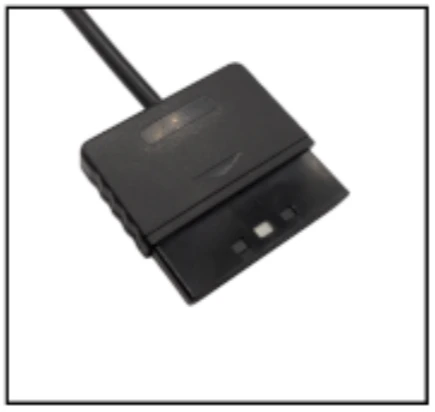
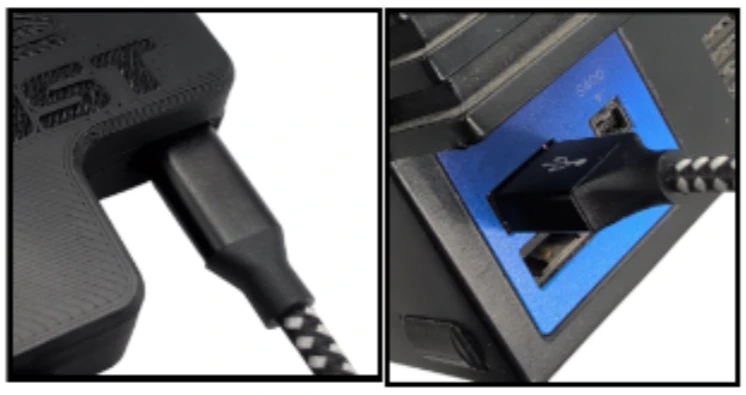
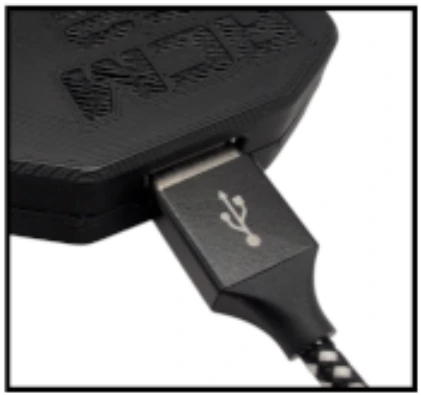
Programming
PS2 Host Adapter Programming Guide
PS2 Host Adapter Programming Guide
To change the preset of your PS2 Host Adapter, you must use the RCM Programming Tool. Click here to be taken to the download page.
Open the PS2 Host adapter, the housing opens top and bottom. There is a USB-C port hidden inside of the housing. That USB port is intended for programming only. DO NOT plug in both USB-C ports at the same time.
Open the RCM Programming Tool on your computer. You will see it appear with “Configure” and “Reset to factory” buttons. Click “Configure“
You will be brought to this screen in the Programming ToolIf you are attempting to change to a different preset, click the dropdown on the left side, then select that preset. After, click “Save Settings“.

Tuning and Calibration
Whammy Calibration/Tuning
Whammy Calibration/Tuning
- Open the USB Host Inputs dropdown menu.

- Scroll down to the guitar whammy section. You’ll see this:

- Click Calibrate!
- Then, don’t touch your whammy bar and then click Next.
- After that, push your whammy bar down as far as it can go without overdoing it. Hold it there, then click Next.
- Now you have to set Deadzone. Push the whammy bar in a little bit and you can see the value go up a little bit. Look for a point where the whammy won’t activate on it’s own. Hold it there, then click Next.
- You’re done! Click Save Settings on the left side. After it’s done, give it a try! You can manually adjust the deadzone with the sliders as well if you’d like to tweak your settings.

Gamepad Thumbstick Tuning
Gamepad Thumbstick Tuning
Before even attempting to calibrate the V3 Adapter for Gamepads, make sure you’re on the preset for your controller. Click here to be taken to the programming section. You can find out what preset you’re on in the main menu of the programming tool.
Plug in your gamepad. You should see “1 Devices connected” appear next to either USB Host Inputs or Wii Extension Input, depending on what type of gamepad you plugged in.
Click the dropdown with whichever type of input you plugged in, then scroll to the thumbsticks. There should only be four inputs. X and Y axis for both thumbsticks.
Move both stick around and see the values that they idle at once you release. Adjust the deadzone to be a bit higher than the idling number. Once you set this, click Save Settings on the left side of the window. You can also use the Calibrate feature, which you then just need to follow the steps of. Optionally, you can set deadzones for triggers if those are experiencing any erratic change in idle value.
Optionally, you can set deadzones for triggers if those are experiencing any erratic change in idle value.Troubleshooting
My PS2 Host Adapter is not appearing in the RCM Programming Tool
My PS2 Host Adapter is not appearing in the RCM Programming Tool
There are various potential reasons for this occurring.
- Faulty USB port. Try a different one.
- Lastly, you may just need to hard reset the device. Holding the reset button while plugging the adapter in will put it into recovery mode, which you can then open the RCM Programming Tool and erase and reset to factory.
[LINUX] RCM Programming Tool is not seeing any devices
[LINUX] RCM Programming Tool is not seeing any devices
If the RCM Programming Tool is not seeing your device, it is likely due to a permissions issue in Linux.You will need the following file:
Navigate to /etc/udev/rules.d/, then drop 68-RCM.rules into the folder.Once you’ve done that, open the RCM Programming Tool. Your device should appear now! If not, try unplugging and plugging back in.CLICK HERE TO DOWNLOAD\
68-RCM.rules